Connect sender and receiver
Select Send at the source and Receive at the destination. Enter the same case-sensitive stream name. Enable Audio and MIDI as needed.
 Find Your Frequency.
LOCAL AUDIO + MIDI ROUTING
Route audio and MIDI between applications on your Windows computer. Capture Windows playback into a DAW, send a session to OBS, or play a plugin stream through a selected audio output.
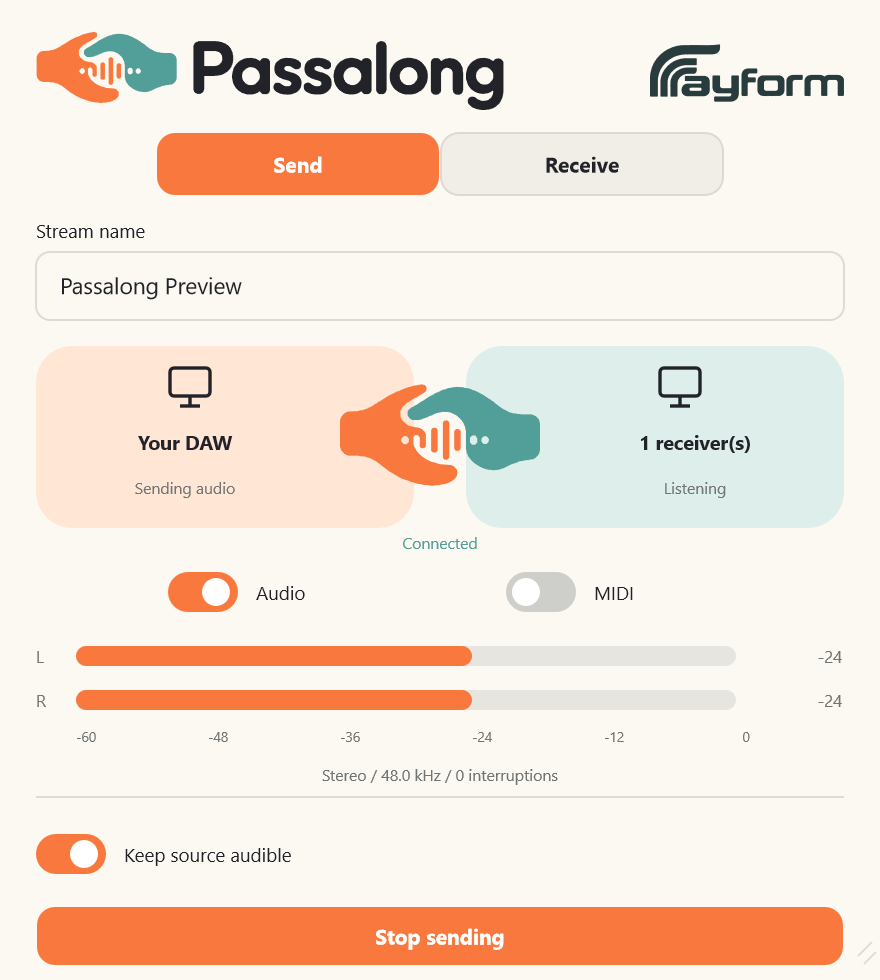
Select Send at the source and Receive at the destination. Enter the same case-sensitive stream name. Enable Audio and MIDI as needed.
On Windows 11, use the standalone Capture tab to capture playback across output devices. Select the receiving DAW, match the stream name, and record in real time.
The standalone Receive tab plays a plugin stream through the selected speakers, headphones, or interface. It matches the output sample rate and synchronizes device clocks.
Add the native Passalong source in OBS. Match the stream name and sample rate to the sender.
Keep source audible retains playback on the sending track. At the receiver, choose Replace input or Mix with input. Multiple plugin receivers can use the same named stream.
Plugin receivers offer 64, 128, or 256 sample buffer targets. Standalone capture and playback adjust buffering automatically. Resize the interface as needed.
Capture Windows audio into a DAW or play a stream through an output device.
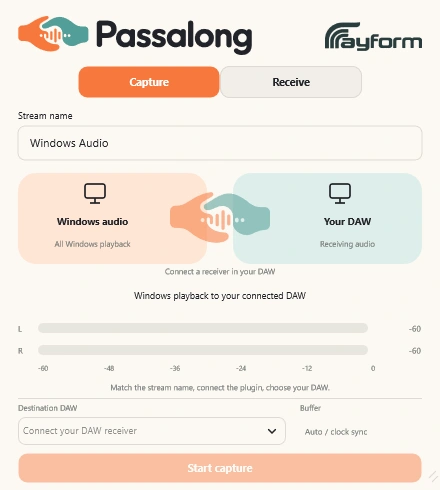
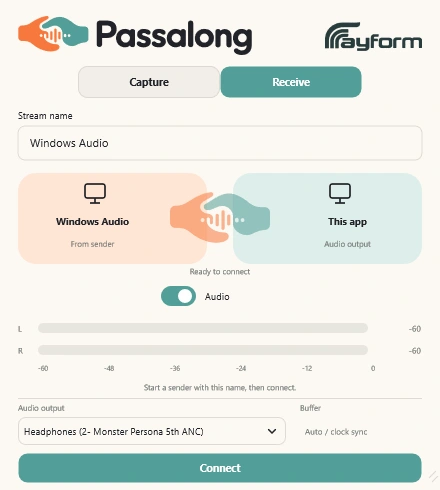
The VST3, standalone Capture and Receive app, and native OBS receiver share the same named-stream workflow.
Choose Receive in the DAW plugin. Open standalone Capture, match the stream name, select the receiving DAW, and start capture. Record the receiving track in real time.
Send from the plugin, open standalone Receive, and choose an audio output. Connect the matching stream and enable Audio.
Send from your DAW, add the Passalong source in OBS, and match the stream name and sample rate.
Install and authorize with Rayform Hub.
Setup guide ↗License details ↗Frequently asked questions
Open standalone Capture on Windows 11 and connect a named receiving plugin in your DAW. Select that DAW as the destination, start capture, and record in real time.
Send audio between supported applications on the same Windows computer, to OBS, or to a Windows audio output through standalone Receive.
Turn off Keep source audible in the sending plugin when listening through standalone Receive. Select your speakers or interface under Audio output.
Use matching rates for plugin-to-plugin and OBS routing. Standalone Capture matches the destination DAW; standalone Receive matches the selected output device.